
For your hub admin: enabling Backup Sorcery
Backup Sorcery for Autodesk Forma (formerly Autodesk Construction Cloud) and BIM 360 is a Windows app that copies projects from a hub to a person's own disk.
What you are asked to do
Add one Autodesk app, identified by a client ID your colleague sends you, as a custom integration on your hub.
What it allows
People on your hub can use Backup Sorcery to copy the files they can already download, with their own sign-in. It removes friction, not walls.
What it cannot do
- Read-only. It never changes, moves or deletes anything in your hub.
- Your permissions, not more. It inherits the folder permissions of the account that signs in, so View only stays view only.
- Only free-to-call Autodesk APIs. It uses the Data Management API and the Forma API (formerly ACC), which Autodesk does not charge for.
- Nothing passes through us. Files go from Autodesk to your disk. The only call to AEC.codes is an anonymous update check.
The honest residual risk
An account that can download a whole project by hand can now do it with one command, every version included. If your folder permissions are wide, review them. Folder permissions are the lever that governs this.
Who should have the client ID
Keep the client ID with the colleagues who will run the backup; there is no reason to share it more widely. It is not a password, though: it appears in the browser's address bar at every sign-in, and it opens nothing on its own. If someone else with an account on your hub gets it, they can copy only what their own account could already download by hand. Folder permissions set that limit, as they do for every other way of downloading from your hub.
If you want to retire a client ID, register a new Autodesk app, enable the new client ID and remove the old integration. Once the old integration is removed or deactivated, its client ID stops working on that hub.
How to enable
- In Autodesk Forma (formerly Autodesk Construction Cloud), open Hub Admin (top left).
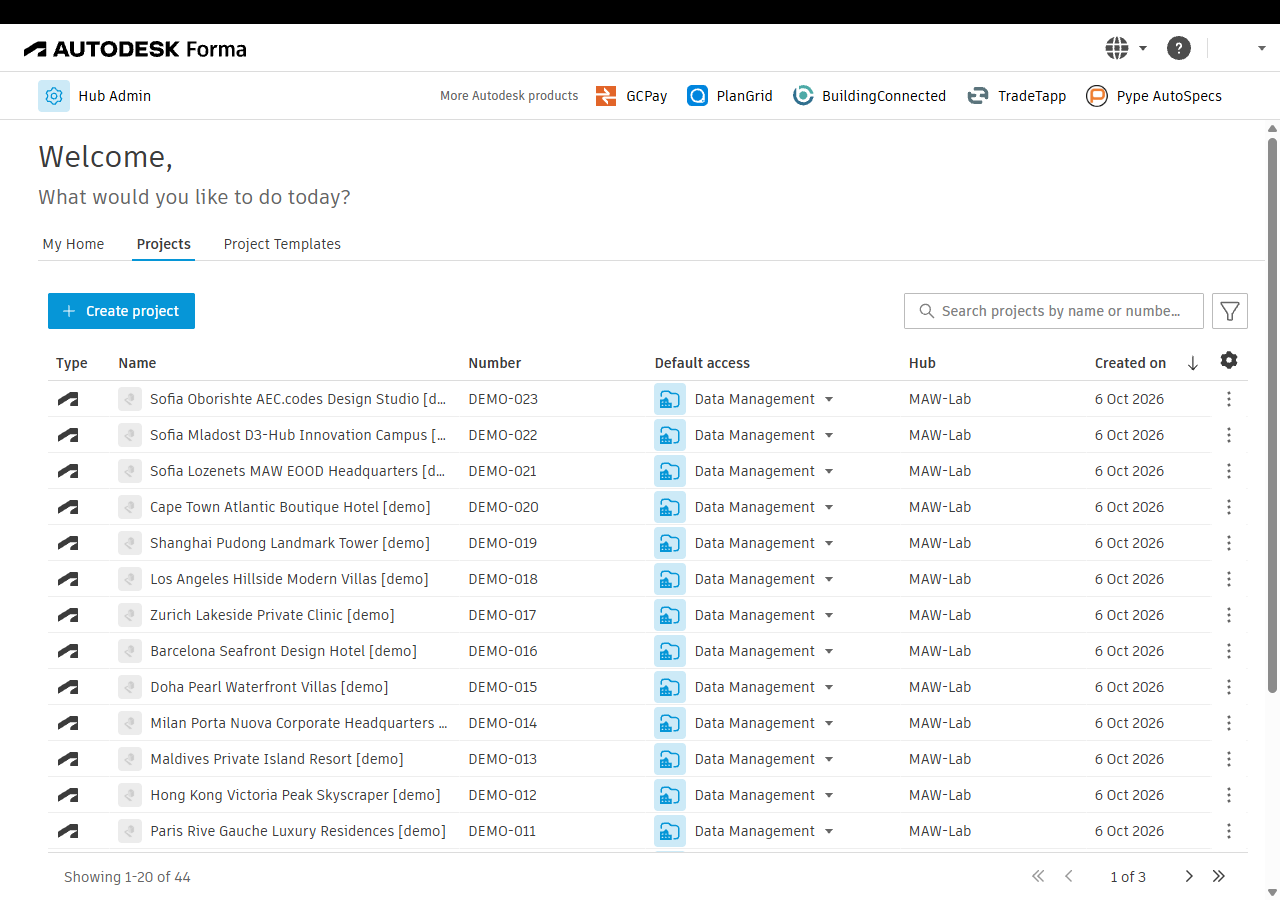
- In the left menu choose Custom integrations.
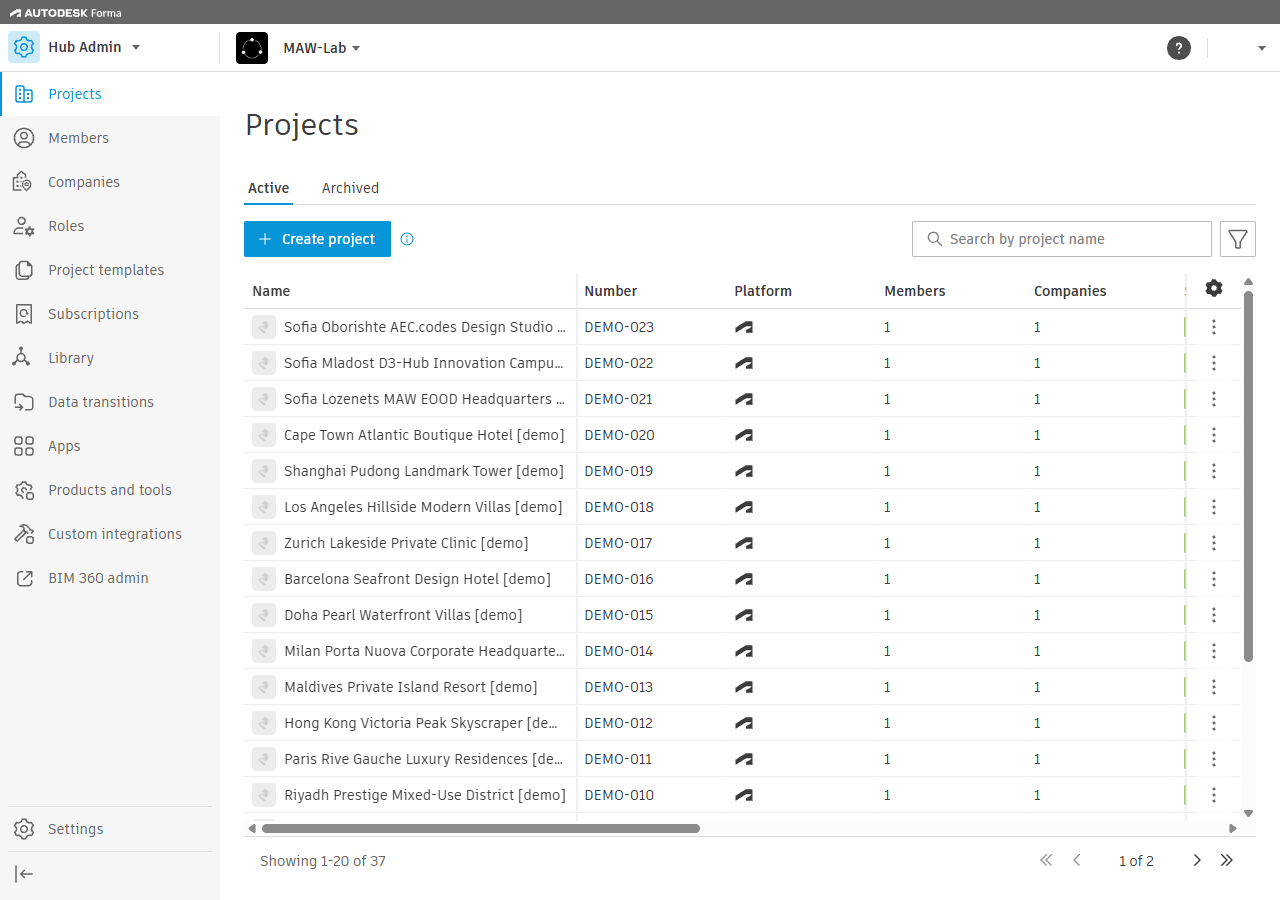
- Click Add custom integration.
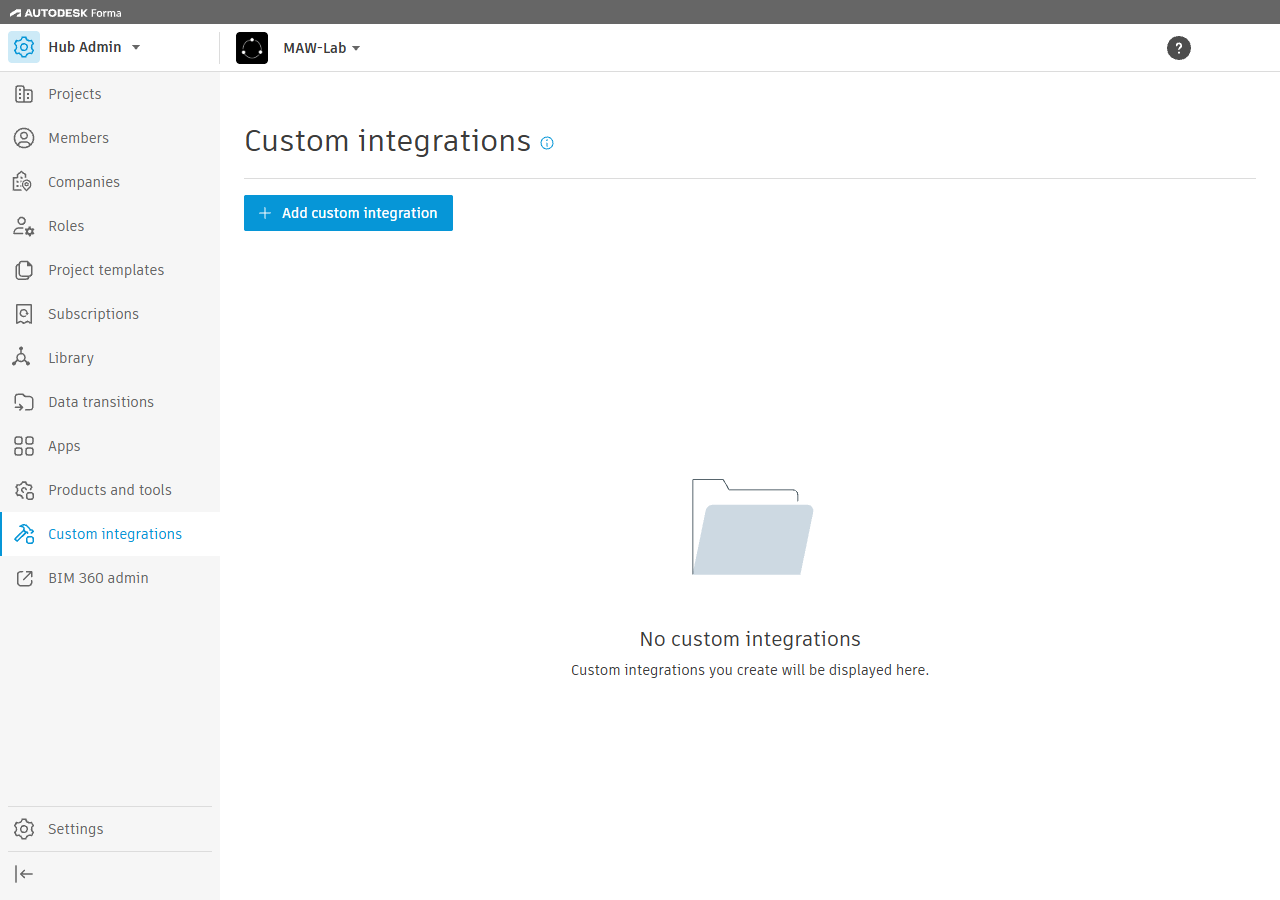
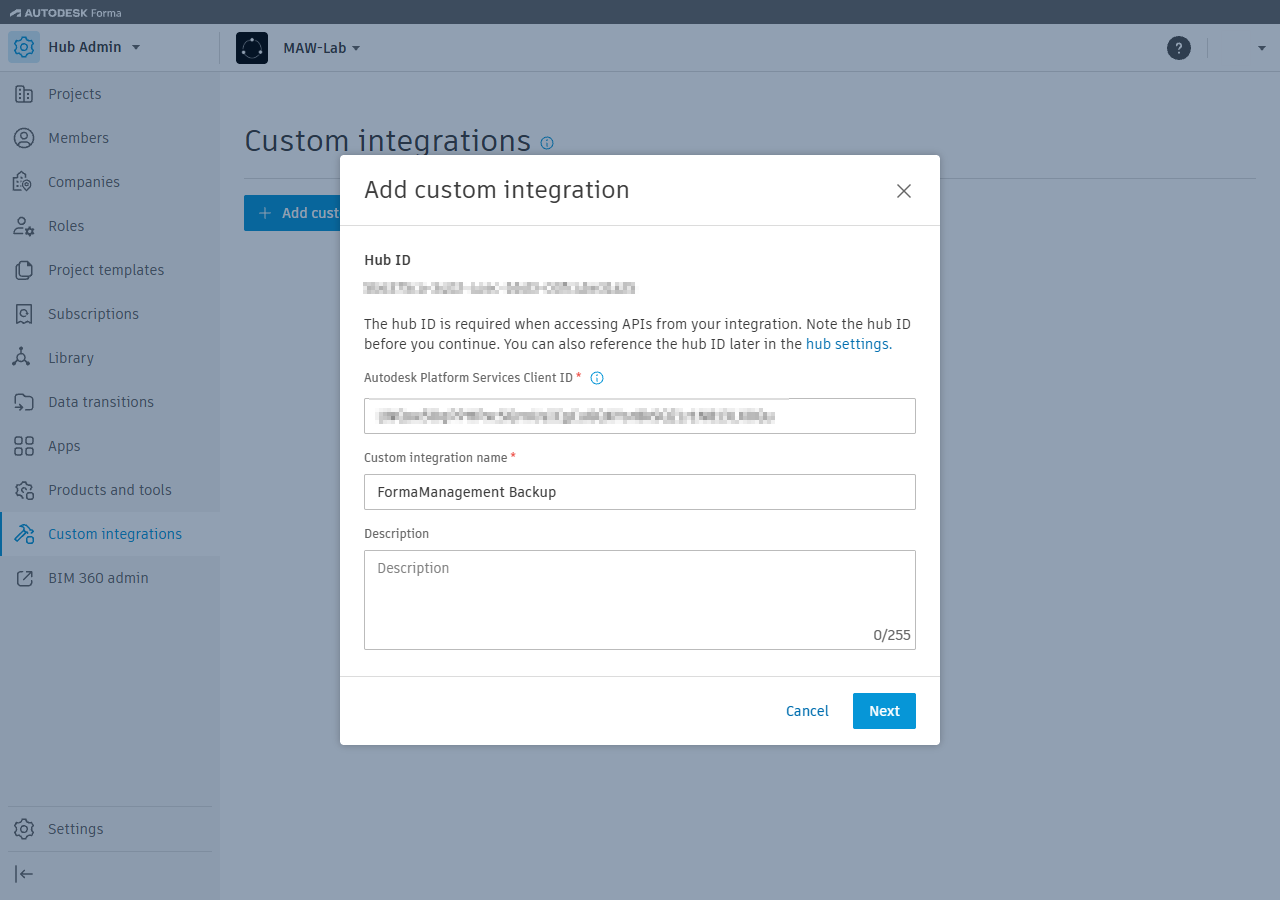
- Paste the client ID into Autodesk Platform Services Client ID, give a Custom integration name, and click Next.
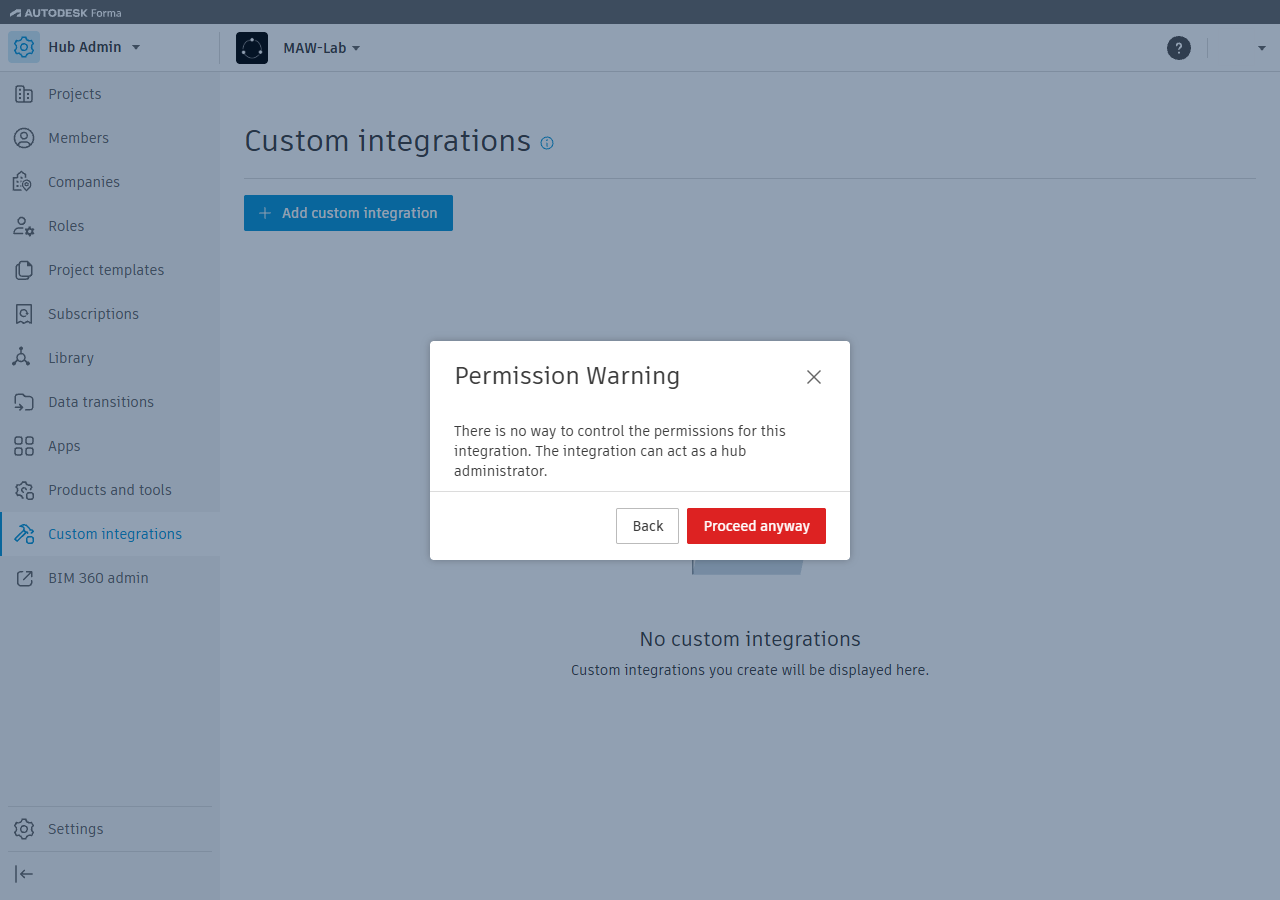
- Autodesk shows a Permission Warning: "There is no way to control the permissions for this integration. The integration can act as a hub administrator." Read Autodesk's permission warning below, then click Proceed anyway.
- The integration is listed as Active, with Integration access Full hub access.
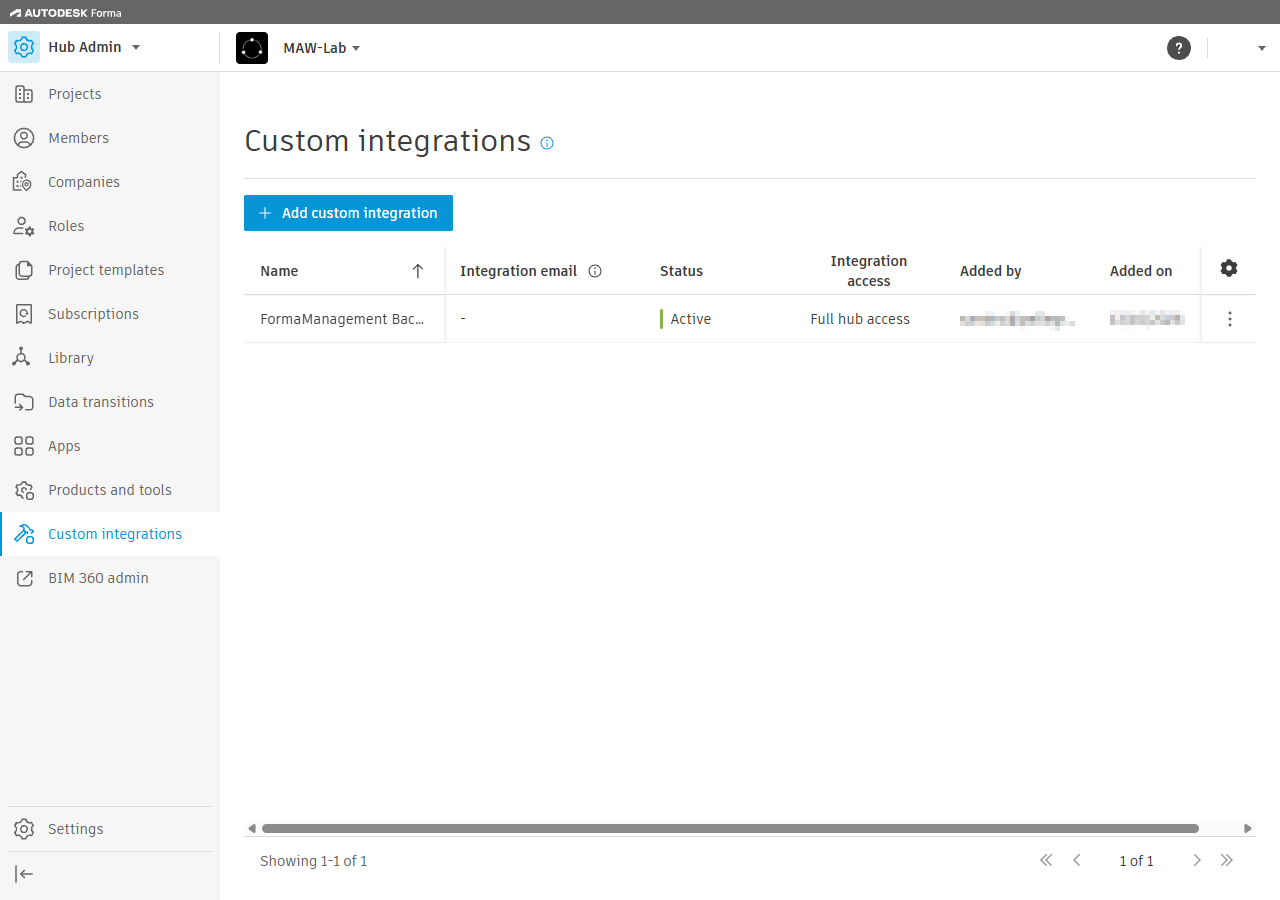
Autodesk's page: Custom Integrations.
Autodesk's permission warning
When you click Next, Autodesk shows a Permission Warning dialog: "There is no way to control the permissions for this integration. The integration can act as a hub administrator." with two buttons, Back and Proceed anyway. Once the integration is added, the list shows Full hub access in the Integration access column.
Autodesk shows this warning because a custom integration could, in principle, call its APIs as the integration itself, with no person signed in. Backup Sorcery cannot: it is a desktop app with no client secret, so every call it makes uses the signed-in person's own Autodesk sign-in and reaches only what that person can already open. It asks Autodesk for read access only.
How to revoke
Disable or remove the integration. That stops the client ID working on that hub, and other hubs are untouched.
Questions: backupsorcery [аt] aec.codes.