
QTOExport Freemium
QTOExport writes the quantities you've tagged and computed out to files — a flat Excel workbook for BI tools and/or an XPWE file for ACCA PriMus — through a short Preview → Summary flow. It is read-only: it reads your model and writes files to disk, and never changes the project.
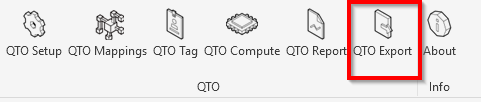
Where this fits
After you assign catalog codes with QTOTag and compute quantities with QTOCompute, QTOExport turns that data into deliverables. For an on-screen status check instead of files, use QTOReport.
Prerequisites
- QTOSetup must have run on the project.
- At least one category configured in QTOMappings.
- Work categories defined (QTO Setup → Work Categories).
- Elements tagged (QTOTag) and computed (QTOCompute) — otherwise there is nothing to export.
How to run
Click QTO Export on the ribbon. A Preview dialog opens first; after you Continue and the files are written, a Summary dialog reports the result.
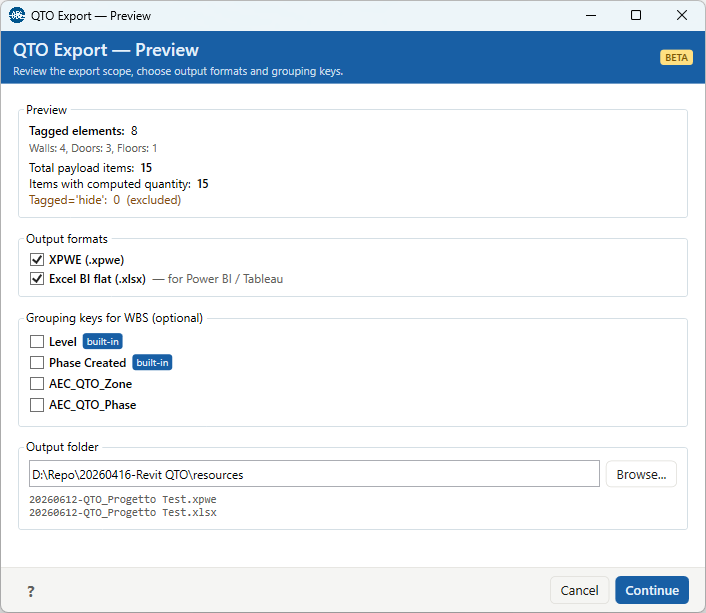
Preview
The Preview summarises what will be exported:
- Tagged elements — the count, with a per-category breakdown.
- Total payload items — every catalog line across the tagged elements.
- Items with computed quantity — the lines QTOCompute produced a value for.
- Tagged='hide' (excluded) — elements you tagged with Save and Hide in QTOTag are deliberately left out.
If there is nothing to export you'll see a banner: "No tagged elements in model. Run QTOTag first." or "No exportable items. Run QTOTag and QTOCompute first."
Output formats
Tick one or both — they are independent, not tabs:
| Format | Tier | What it's for |
|---|---|---|
Excel BI flat (.xlsx) |
Free | A flat, denormalised workbook (one row per item) for Power BI, Tableau, or pivot tables. |
XPWE (.xpwe) |
Pay | The ACCA Software / PriMus interchange format — a Computo Metrico for import into PriMus. |
Excel is free; XPWE is a Pay-tier feature (the commercial PriMus integration). On the Free tier the XPWE checkbox is disabled with an "Available in Pay tier" tooltip; on the Pay tier it is enabled and ticked by default. Excel BI flat is available in every tier.
Grouping keys for WBS (optional)
Optionally group the output into a work-breakdown structure. Four keys are offered: Level and Phase Created (both built-in Revit properties), plus AEC_QTO_Zone and AEC_QTO_Phase. Selecting any of them re-collects the rows grouped by those keys (in XPWE, items aggregate per catalog code, work category, and grouping). Leave them all unticked for an ungrouped export.
Output folder and filename
Choose the output folder (it defaults to the folder of the saved .rvt, or My Documents if the
project is unsaved). The preview below the field shows one filename per selected format, named
<yyyyMMdd>-QTO_<project>.<ext> — e.g. 20260612-QTO_Progetto Test.xpwe.
Continue becomes available once at least one format is ticked, a folder is set, and there
is at least one item with a computed quantity.
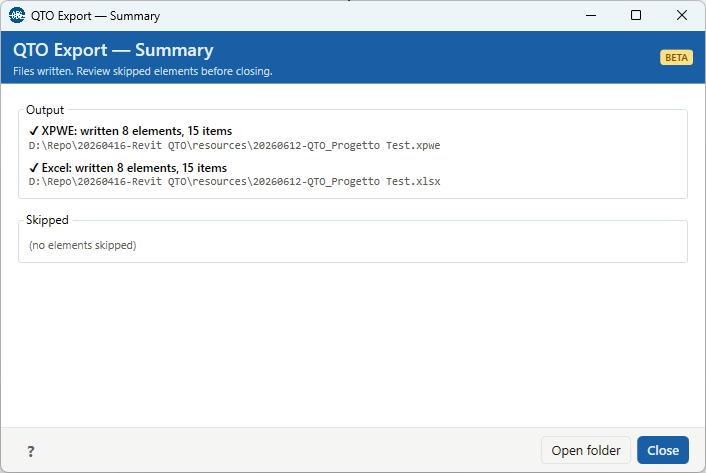
Summary
After writing, the Summary shows each format's result — ✓ {Format}: written N elements, M items
with the file path (or a ✗ line with the error). The Skipped section lists
anything left out, by reason: Layer-mode payloads, Tagged="hide", No payload, Empty items, Non-positive
quantity (≤ 0), Missing computed value, or Invalid value modifier — or "(no elements skipped)" when
everything exported cleanly. Open folder reveals the files; Close
dismisses the dialog.
Troubleshooting
"Run QTO Setup before using Export."
No project configuration yet. Run QTOSetup first.
"Run QTO Mappings before using Export."
No category mappings are configured. Set them up in QTOMappings.
"No work categories defined. Open QTO Setup → Work Categories first."
Define your work categories in QTO Setup before exporting.
"No tagged elements in model. Run QTOTag first."
Nothing is tagged yet. Assign catalog codes with QTOTag.
"No exportable items. Run QTOTag and QTOCompute first."
Elements are tagged but have no computed quantities. Run QTOCompute, then export.