
Work stages Freemium
Work stages are the construction stages your quantities are billed against — for example Demolitions, Foundations, New construction, or the milestones of a SAL (Stato Avanzamento Lavori). You define them once per project as an ordered list, then assign each tagged item to one of them in QTOTag.
Work stages are not Revit phases. They are an AEC.codes QTO concept for billing and SAL, independent of Revit's model Phase property. Adding, renaming, reordering, or deleting them has no effect on Revit phasing.
Where this fits
You manage work stages from QTOSetup: the Edit Work Stages… button on the Data source tab opens this dialog. The stages you define here populate the Phase picker in QTOTag, where each assigned item is placed in a stage. (The add-in labels that per-item field "Phase" — it refers to these work stages.)
The dialog
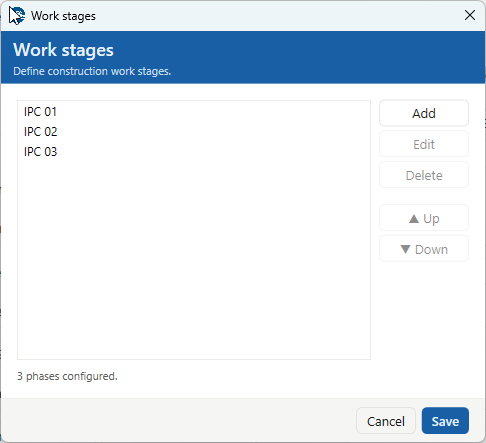
The dialog is a simple ordered list with actions on the right:
- Add — prompts for a name and appends a new stage.
- Edit — renames the selected stage. The stage keeps its internal identity, so items already assigned to it stay assigned after a rename.
- Delete — removes the selected stage (after a confirmation).
- ▲ Up / ▼ Down — reorder the selected stage. The order is the sequence used wherever stages are listed.
Edit, Delete, Up and Down act on the selected stage, so they stay disabled until you select one (Up is disabled for the first stage, Down for the last). The line at the bottom shows how many stages are configured. Save keeps your changes; Cancel discards them, warning first if you have unsaved edits.
Where they're stored
Work stages are saved inside the Revit document with the rest of the project configuration — there is no external file. Each stage carries a stable id derived from its name, which is why renaming a stage keeps every item already assigned to it. Defining stages is optional: a project with none simply has no Phase choice to set in QTOTag.