
Search & Filter Freemium
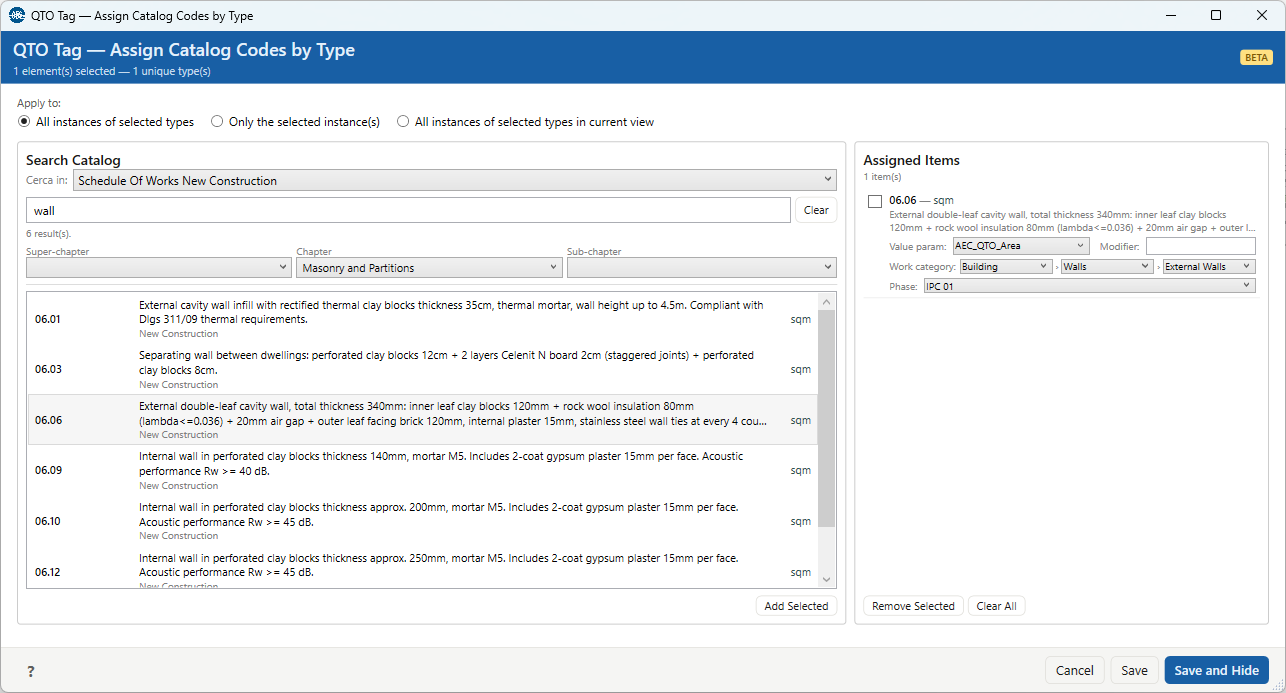
Search & Filter is how you find a price-list item inside QTOTag — the Search Catalog panel. You can type to search the whole catalog, browse the chapter dropdowns by hierarchy, or do both at once. It is not a separate command: it lives inside QTOTag.
Text search
Type at least three characters; results update as you type. Each space-separated word has to appear somewhere across these six fields of an item (all of them at once):
- code
- description and short description
- super-chapter, chapter and sub-chapter
Matching is case-insensitive and works on partial words, so wall clay finds every item whose
text contains both "wall" and "clay", in any order and in any field. There is no fuzzy matching or spell
correction. Below three characters nothing is searched and the panel shows a short hint;
Clear empties the box. The count under the box (e.g. "6 result(s)") reflects what currently
matches.
Chapter filters (cascade)
The three dropdowns — Super-chapter, Chapter, Sub-chapter — let you narrow the catalog by its own hierarchy, with or without typing. They cascade:
- Each level only lists values that exist within the level above it. Choosing a Super-chapter limits the Chapter options to that branch, and so on.
- Changing a higher level resets the levels below it — a child only makes sense under its parent.
- (All) is the "no filter" entry for a level.
The dropdown labels come from your column mapping: they show the price list's own column names. A chapter level you did not map simply doesn't get a dropdown. Very long chapter names are shortened in the dropdown for readability; the full value is still used for searching and is what gets stored on the item.
Putting them together
Text search and chapter filters compose: the dropdowns filter within the current search results, and the results list appears once there are 200 or fewer matches. Until then, keep typing or pick a filter to narrow down. Select an item and Add Selected moves it into the Assigned Items list in QTOTag, where you finish the assignment.