
QTOSetup Freemium
QTOSetup is the per-project control center for the QTO add-in.
Open it when you start a project — and revisit it any time — to load the price list you'll
bill against, name the project, configure work stages and work categories, create the QTO
Shared Parameters, choose which price lists are active, and check for updates. Everything you
configure here is stored inside the Revit document (via ExtensibleStorage);
there is no separate configuration file next to the .rvt.

Prerequisites
- A writable Revit project (not view-only or read-only).
- Most of the dialog works in the free tier. Creating Shared Parameters needs a QTO Pay license, and a few data-source formats need a Basic plan (see below).
How to run
On the AEC.codes ribbon tab, click QTO Setup in the QTO panel.
The dialog at a glance
The window has a header (title, a short description, your license tier and status, and a BETA badge), two tabs — Data source and Price lists — and a footer with Cancel and Save. A status line at the bottom reports the result of the last action.
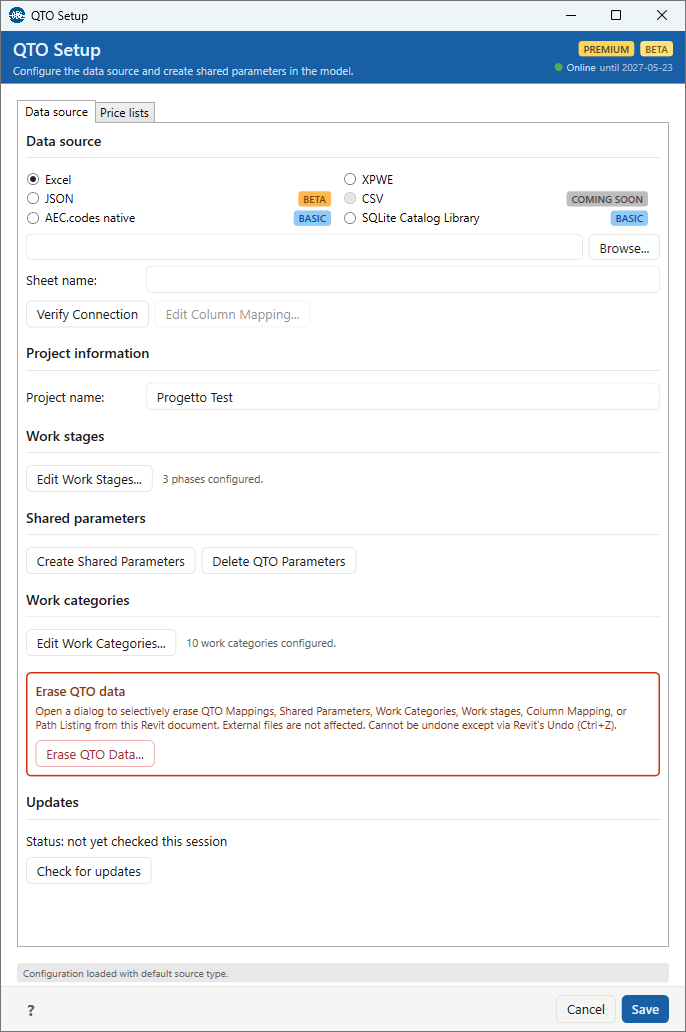
Data source tab
Choose and load a price list
Pick the format of the price list (the "listino") you want to load, point the add-in at the file, verify it, and map its columns. Loading a price list adds it to your local catalog library (shared across all your projects); you then mark it active for this project in the Price lists tab. Repeat the flow to load several price lists.
| Format | Availability | Notes |
|---|---|---|
| Excel | Free | Pick a sheet and map columns. Supports .xlsx / .xls. |
| XPWE | Free | Self-describing native format — no column mapping needed. |
| JSON | Beta | Supported with column mapping; a mapping rework is planned. |
| CSV | Coming soon | Not selectable yet. |
| AEC.codes native | Basic plan | Native format with pre-built classifications. |
| SQLite Catalog Library | Basic plan | Multi-project catalog library with tagged classifications. |
Controls in this section:
- Browse — select the source file; the file filter follows the chosen format.
- Sheet name — shown for Excel only; the worksheet to read.
- Verify Connection — checks the file, reports success or the exact error, and detects the available columns.
- Edit Column Mapping… — available for Excel and JSON. Opens the Column Mapping dialog, where you also set the price-list metadata (id, display name, region, year, …). For XPWE the button is disabled (self-describing format); for CSV it is disabled until the format ships.
Project information
Project name — required before you can Save. Defaults to the Revit document title.
Work stages
Click Edit Work Stages… to define the project's stages (a single stage, or SAL — Stato Avanzamento Lavori — milestones). The line beside the button shows how many are configured. See Work stages.
Shared parameters (Pay license)
These actions need a QTO Pay license; in free mode they are greyed out and marked PAY FEATURE.
- Create Shared Parameters — adds the QTO Shared Parameters to the project and binds them to the relevant categories, so QTO quantities can appear in Revit schedules and tags.
- Delete QTO Parameters — opens the Erase dialog with Shared Parameters pre-selected.
See Shared Parameters and License & Tiers.
Work categories
Click Edit Work Categories… to review or customize the project's work-category scheme; the line beside the button shows how many are configured. See Work Categories.
Erase QTO data
The red Erase QTO Data… button opens a dialog where you tick exactly what to remove: QTO Mappings, Shared Parameters, Work Categories, Work stages, Column Mapping, or Path Listing. It only touches data held in the Revit document — your price-list files and the local library are not affected. It cannot be undone except with Revit's Undo (Ctrl+Z). Some steps require a Pay license; the dialog enables or disables them accordingly.
Updates
Shows whether you've checked for updates this session. Check for updates queries the update server; if a newer build is available, an Open release notes button appears.
Price lists tab
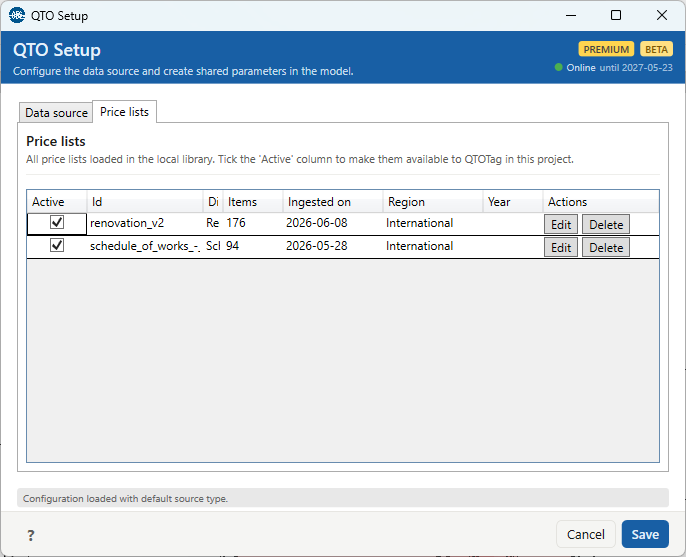
Lists every price list in your local catalog library (machine-wide, shared across projects). Columns: Active, Id, Display name, Items, Ingested on, Region, Year, plus per-row Edit and Delete.
- Active — tick a price list to make it selectable in QTOTag for this project. The selection is saved with the project when you click Save.
- Edit — re-opens the Column Mapping dialog for that price list. The id is locked; you can change the display name and metadata, or re-map and re-ingest.
- Delete — removes the price list from the local library after a confirmation. This affects every project on the machine, not just this one. Elements already tagged with items from it keep their data but are flagged on the next QTOCompute.
If the library is empty, the tab shows a hint and a Go to Data source button.
Saving & canceling
Save checks that the project name is set, writes the project configuration into the Revit document, and stores which price lists are active. There is no single "create everything" step — creating Shared Parameters, erasing data, and loading price lists are separate actions you trigger yourself. Cancel closes without saving the project-config and active-price-list changes; price lists you already loaded from the Data source tab remain in the library (they're added at load time, not on Save).
Common scenarios
- First setup on a new project — set the project name, load at least one price list from Data source, tick it Active in Price lists, then Save. On Pay, also Create Shared Parameters.
- Adding another price list — Data source → pick format → Browse → Verify → Edit Column Mapping → save; it appears in Price lists.
- Resetting a project — use Erase QTO Data… and tick only the parts you want gone.
- Multi-stage projects (SAL) — define the stages under Work stages.
Troubleshooting
Save is disabled or fails
The project name is empty, or the Revit project is read-only.
Verify Connection fails
Wrong file or sheet, or the file is open in another program. The inline message shows the reason.
Create Shared Parameters / Delete QTO Parameters are greyed out
You're in free mode. These actions require a QTO Pay license.
Edit Column Mapping is disabled
The selected format doesn't use column mapping (XPWE) or isn't available yet (CSV).
A data-source option is greyed with a BASIC or COMING SOON badge
That format needs a Basic plan, or hasn't been released yet.
"Mapping references headers not found in the source"
The saved column mapping points at columns your file doesn't have. Open Edit Column Mapping to fix it.