
QTOReport Freemium
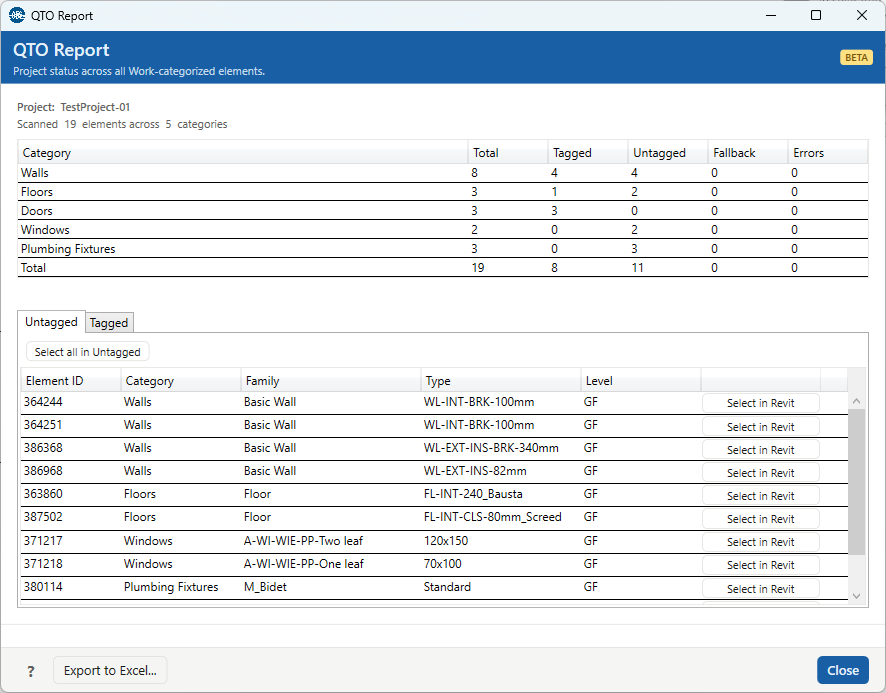
QTOReport shows the QTO status of your project: how many elements in each configured category are tagged, untagged, used a fallback, or errored. You can drill into any of those groups, select the elements directly in Revit, and export the whole report to Excel. It is read-only — it never changes your model.

Where this fits
After you tag elements with QTOTag and compute quantities with QTOCompute, QTOReport tells you where the project stands — what's still untagged, what fell back to estimates, and what errored — and lets you act on it. For exporting a priced bill of quantities, use QTOExport.
Prerequisites
- QTOSetup must have run on the project.
- At least one category must be configured in QTOMappings. With none, QTOReport shows a prompt to open QTO Setup and configure them.
How to run
Click QTO Report on the ribbon. The window is modeless — you can keep it open while working in Revit, and clicking the button again refreshes it in place.
The summary
The header shows the project name and how many elements were scanned across how many categories. The table below has one row per category, plus a Total row:
| Column | Meaning |
|---|---|
| Total | Elements of that category in the configured set. |
| Tagged | Elements that carry a QTO tag (assigned in QTOTag). |
| Untagged | Elements with no tag yet. |
| Fallback | Elements whose computed quantity used a bounding-box fallback (from QTOCompute). |
| Errors | Elements that errored during compute. |
Drill-down tabs
Below the summary, a tab appears for each non-empty group: Untagged, Tagged, Fallback, and Errors. (A group with zero elements has no tab — so a clean project may show only Tagged, or none at all.) Each tab lists its elements with Element ID, Category, Family, Type, and Level; the Fallback tab adds a Flags column and the Errors tab adds an Error message column.
- Select in Revit (per row) — selects that element in Revit and zooms to it, so you can fix or inspect it.
- Select all in {tab} — selects every element in the current tab at once (e.g. to isolate all untagged elements).
This drill-down is how you inspect problem elements; there is no separate command for it.
Export to Excel
Export to Excel... in the footer saves the report — the summary and the element
lists — as an .xlsx workbook (named QTOReport_<project>_<date>.xlsx
by default). After a successful export, the status line links to the file so you can open it. The
export is a snapshot; editing it has no effect on the model. For a priced bill of quantities, use
QTOExport.
Troubleshooting
"Run QTO Setup before using Report."
No project configuration yet. Run QTOSetup first.
"No Work categories configured."
No categories are set up to scan. Use the "Open QTO Setup" button, configure categories (see QTOMappings), then click QTO Report again.
"No elements found in the configured Work categories."
The model has no instances of the configured categories. Add geometry or adjust the categories.
"Selected element no longer exists in the project."
The element was deleted since the report was built. Click QTO Report again to refresh the lists.