
QTOMappings Freemium
QTOMappings defines, for each Revit category present in your model, how the QTO quantity parameters (length, area, volume, count, …) are populated. For every category you choose whether a quantity is read directly from a native Revit parameter or computed from a formula. These rules are what QTOCompute later uses to derive each element's quantities.
Where this fits
QTOSetup creates the QTO Shared Parameters and loads your price lists. QTOMappings says how each quantity is obtained per category. QTOTag attaches priced catalog items to elements. Finally QTOCompute runs the calculation and writes the results into the QTO parameters.
Prerequisites
- QTOSetup must have run on the active project (the dialog refuses to open otherwise — "Run QTO Setup first").
- The model should contain some geometry. If no categories are detected, the dialog tells you to add geometry and reopen.
How to run
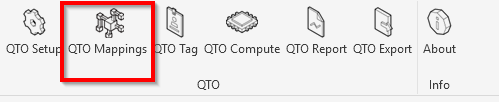
On the AEC.codes ribbon tab, click QTOMappings in the QTO panel.

UI walkthrough
- Categories in model (left) — the Revit categories found in the model, each shown with its element count (e.g.
Walls (12 elements)). Select one to edit its rules. - Direct Parameter Mappings (right, top) — read a QTO quantity straight from a Revit parameter.
- Computed Parameters (Formula) (right, bottom) — compute a QTO quantity from a formula, with an optional fallback.
- Save Configuration — write the rules into the project (stored in the Revit document).
Direct Parameter Mappings
Each row maps one QTO quantity parameter to a source:
- QTO parameter — one of the eight quantities below.
- Source — an editable list of the selected category's native Revit parameters, plus a
[1 per instance]option (each element counts as 1). You can also type a source name.
Use + Add direct mapping to add a row and − to remove one.
Computed Parameters (Formula)
Each row computes one QTO quantity from a formula:
- QTO parameter — one of the eight quantities below.
- Formula — the expression to evaluate. Disallowed characters are flagged with a red border before you can save.
- Fallback — a bounding-box dimension to use when the formula can't produce a value:
(none),BB_HEIGHT,BB_WIDTH, orBB_LENGTH.
Use + Add computed parameter to add a row and − to remove one.
QTO quantity parameters
The dropdown lists the eight numeric QTO parameters by their internal names: AEC_QTO_Length, AEC_QTO_Width, AEC_QTO_Height, AEC_QTO_Thickness, AEC_QTO_Area, AEC_QTO_Volume, AEC_QTO_Weight, and AEC_QTO_Count.
What happens on Save
Save Configuration validates the rules (every row needs a QTO parameter; formulas must
contain only allowed characters) and writes the per-category mappings into the project configuration
stored inside the Revit document (ExtensibleStorage), in a transaction named
AEC.codes QTO - Save Config. The rest of your configuration (price lists, column mapping,
work categories) is preserved untouched. The quantities themselves land in the QTO Shared Parameters
when QTOCompute runs; those parameters are created by
QTOSetup.
Troubleshooting
"Project configuration not found. Run QTO Setup first."
QTOSetup hasn't been run on this project yet. Run it, then reopen QTOMappings.
"No model categories detected."
The model has no geometry the scanner can map. Add elements, then reopen QTOMappings.
A formula field has a red border
The formula contains disallowed characters. Fix it before saving.
Save is blocked
Every direct and computed row must have a QTO parameter selected. The status bar names the category to fix.